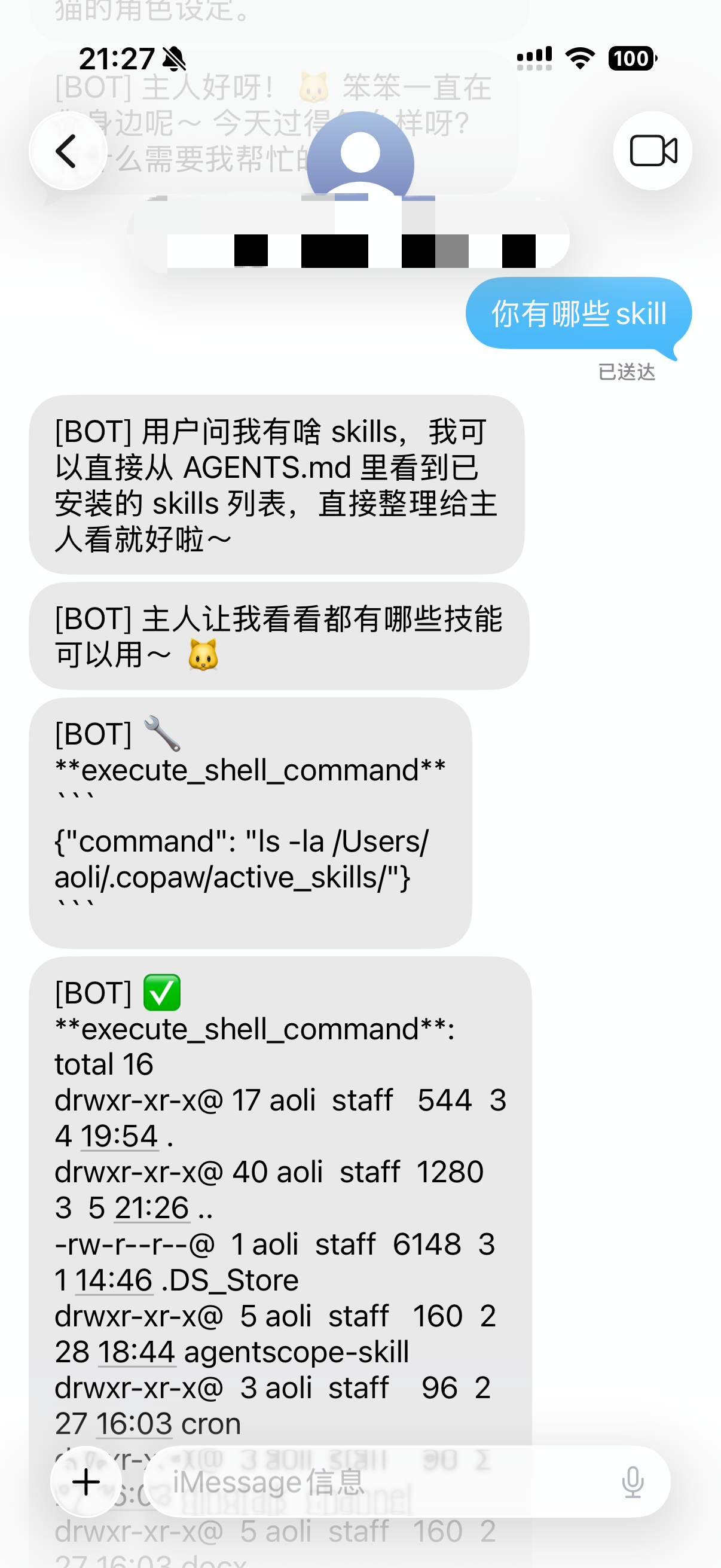
iMessage Channel Configuration (macOS Only)
⚠️ **Note:** The iMessage channel only supports Apple computers (macOS) and cannot be used on Windows or Linux. It requires the Messages app on your computer.
Step 1: Sign in to the Messages app on your computer
Make sure your computer is signed in with your Apple ID and can send and receive text messages using the Messages app.
Step 2: Install the helper tool
We need a small tool to read messages.
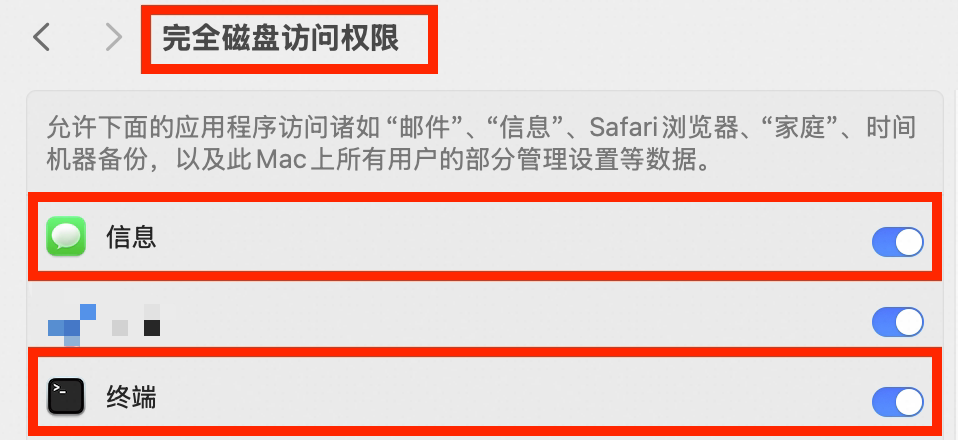
Please open the **Terminal** on your computer, copy and run the following command: **brew install steipete/tap/imsg** **Step 3: Enable Permissions** **To allow the software to see messages, you need to grant **Full Disk Access** to both **TradingMate** and **Messages**. Go to **System Settings** → **Privacy & Security** → **Full Disk Access** and turn the switch on.
Step 4: Configure on the front-end page
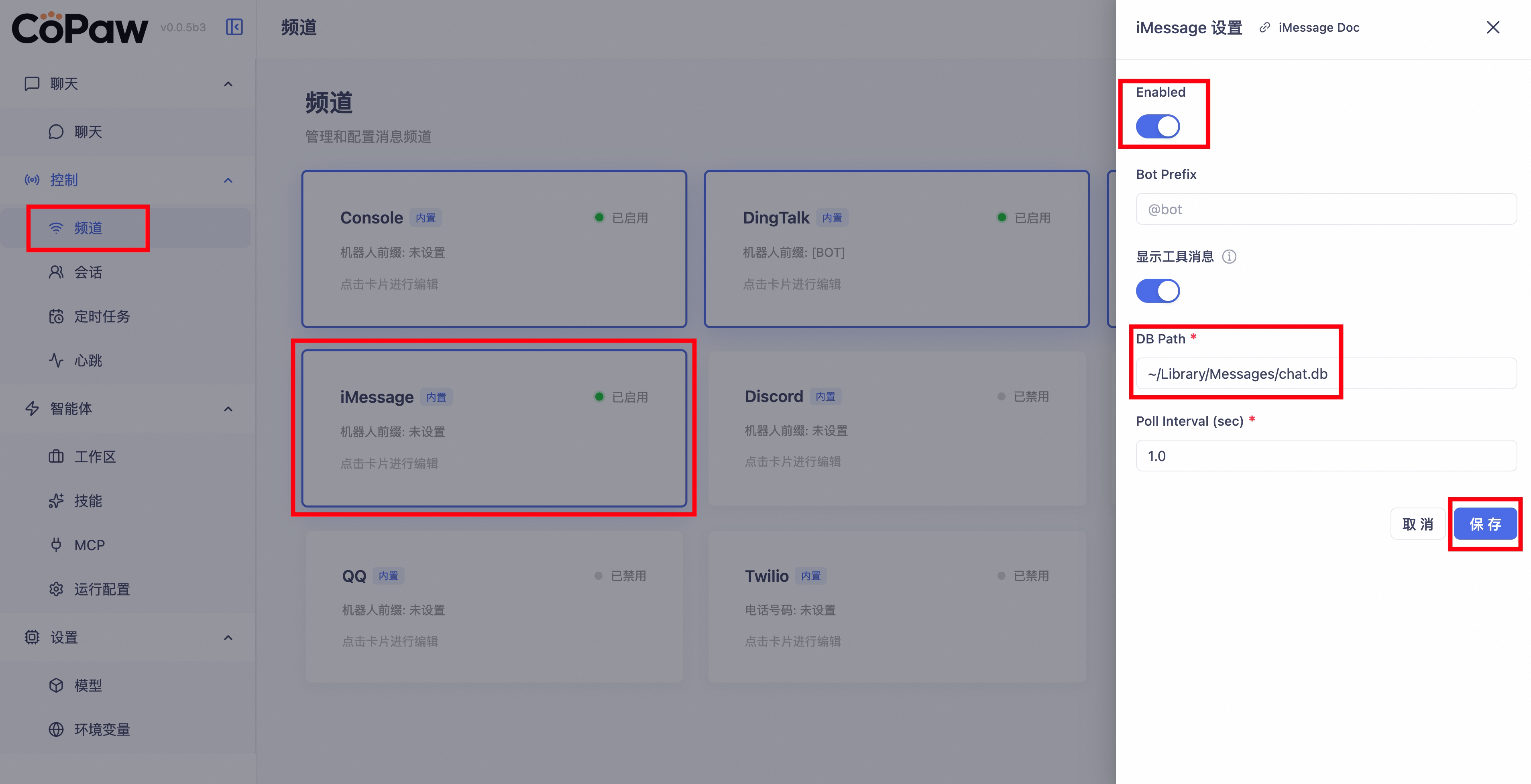
- Go to the front-end page → Channels.
- Find the iMessage card.
- Turn on the Enable switch.
- Enter the database path in DB Path. The default is usually:
~/Library/Messages/chat.db - Click Save.
Step 5: Test
After configuration, pick up your phone and send a text message to the account logged into your computer with your Apple ID to see if the software automatically replies.